What FlowState shows you
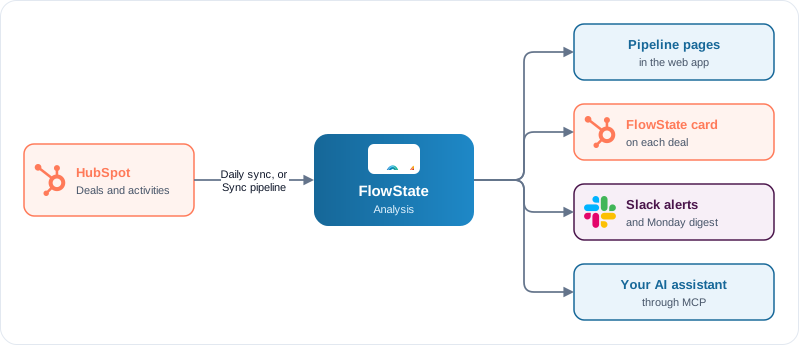
FlowState reads your HubSpot deals once a day, checks every open deal and shows the result on a set of pipeline pages. Sellers see the same deal-level facts on the FlowState card inside HubSpot. This page explains where the data comes from and what each page is for.
Where the data comes from
- The daily sync. FlowState reads your HubSpot pipeline once a day, at the time shown under Settings → Schedules, and analyses every open deal. The daily sync runs when the AI agent or Goals feature is on (see Turn on features).
- A sync on demand. On Apps → HubSpot → Overview, the Sync & Analysis card has a Sync pipeline button (owner, admin and member roles). It shows when the last sync finished and whether one is running.
- Win/loss analysis runs once a week. An owner or admin can start it at any time with Win/loss analysis in the same card or at the top of the Win / Loss page. Both show when the last analysis finished and how many deals closed in the last 12 months. Counts, amounts and breakdowns come from your closed deals; the AI writes the themes, reasons and insights.
A page that has no data yet says so and tells you which sync to run.
The pages
The pages are in the sidebar under Apps → HubSpot. A page is visible only when its feature is on.
| Page | What it is for |
|---|---|
| Overview | The state of your pipeline in the selected month or quarter: pipeline by stage, the Daily Pulse (win rate, pipeline coverage, at-risk value), stalled, outdated and inconsistent deals, and an AI summary with recommendations. The sync controls are here too. |
| Win / Loss | Why you win and lose: win rate, top win themes, top loss reasons, and results by technology area, service type and cloud platform, over the last 12, 24, 36 or 48 months. Each result lists won, lost and total deals, largest total first. Point to a number to see the deals behind it, as on the Overview. The number next to a win theme or loss reason is the number of deals it applies to; point to it to see those deals. Needs Win/Loss analysis. |
| Action Items | One row per sales representative: open deals, at-risk value, stalled and outdated deals, and the longest time without activity. Use it to see who needs to update which deals. |
| Stage Velocity | The average and median days deals spend in each pipeline stage, now compared with the last 12 months, with the conversion rate per stage. Use it to find the stage where deals slow down. |
| Goals attainment | Your annual revenue and deal-count targets, broken down by quarter and month, with progress and each representative’s quota. Needs Goals. |
| Recommendations | The deals that need action now, with the issues found on each (for example Closing too soon or Missing close date), and the AI’s suggested next actions. Each deal links to its record in HubSpot. An AI suggestion that names a deal not in the analysed pipeline is left out, and the page says how many were left out. |
The sidebar entry Dashboard (page title Overview) is the tenant home. It shows the connection status of HubSpot and APN and the headline numbers of the last analysis.
Deal terms used on the pages
| Term | Meaning |
|---|---|
| Stalled | An open deal with no activity for longer than the limit for its stage. The limit depends on how far the stage is in your pipeline. |
| Outdated | An open deal whose close date is in the past. |
| Inconsistent | An open deal whose stage, activity and close date do not fit together. The issue names are Closing too soon, Stalled near close, Closing soon, no activity and No close date. |
| At risk | A deal that is stalled, outdated or inconsistent. Each deal is counted once. |
Other places you see the same data
- The HubSpot card shows the facts for one deal, where sellers work. See The HubSpot card.
- Slack receives overdue-deal alerts every day and a digest every Monday. See Slack notifications.
- Your AI assistant can answer questions about your pipeline in plain language through MCP. See MCP overview.