Getting started
This page takes you from a new account to a working FlowState tenant. Each step says what to do and what you see when it worked. Steps 1 to 6 are for everyone. Steps 7 to 10 are optional or for AWS Partners only.
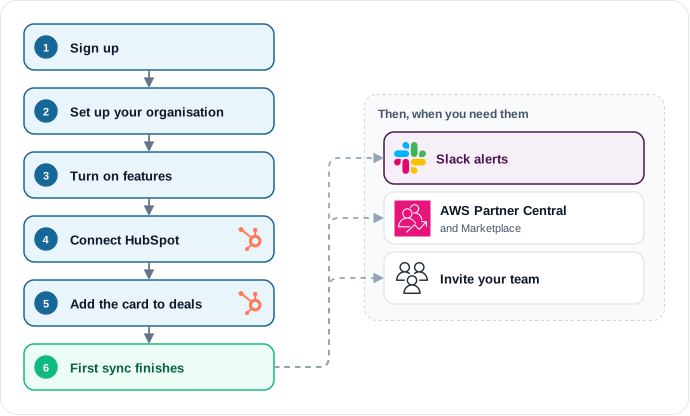
1. Create your account
- Open the FlowState homepage and click Get started.
- On the sign-in page, click Sign up. Sign up with an email address and a password, or with Google.
- If you used an email address, enter the confirmation code from the email FlowState sends you, then sign in.
Result: the Welcome to FlowState page opens. Details: Signing up.
2. Set up your organisation and first tenant
A tenant is your team’s private workspace in FlowState. An organisation owns one or more tenants and pays for all of them.
- Click Create a new tenant.
- Under 1. Your organisation, select how your organisation is billed. For card payment, select Stripe and enter the Organisation name.
- Under 2. Your first tenant, enter the Tenant name and the URL slug. You cannot change the slug later.
- Click Create tenant and complete the payment on the Stripe page.
Result: FlowState shows Payment received — activating your tenant… and then your list of tenants. Open the new tenant. For AWS Marketplace and invoice billing, see Signing up.
3. Turn on the features you need
Every feature of a new tenant starts off. The tenant owner or an admin turns features on.
- In the sidebar, open Settings → Features.
- Under Sales Manager, turn on HubSpot and AI agent. Turn on Win/Loss analysis and Goals if you want them.
Result: each switch takes effect immediately. Apps → HubSpot appears in the sidebar. The daily pipeline sync runs only when AI agent or Goals is on. See Turn on features for every feature.
4. Connect HubSpot
You need the owner or admin role in FlowState. In HubSpot you need Super Admin or App Marketplace Access.
- Open Settings → Integrations → HubSpot and click Connect HubSpot.
- HubSpot opens in the same tab. Check that the correct portal is selected, then click Connect app.
Result: you are back on the HubSpot page. It shows your portal with a connected badge and the message HubSpot connected. The first sync has started. Follow the first sync in Apps → HubSpot → Overview, in the Sync & Analysis card. When it finishes, you get an email with the number of deals imported. Details: Connect HubSpot.
5. AWS Partners only: create the APN deal properties
- On Settings → Integrations → HubSpot, click Provision properties.
Result: the APN deal properties list shows the properties FlowState created in the
flowstate_apn group in HubSpot. See Custom properties.
6. Add the FlowState card to your deals
A HubSpot admin does this once for each deal record view.
- Open any deal in HubSpot and click Customize.
- Add a tab named FlowState, then add the app card FlowState APN Sync to it.
- Click Save and exit.
Result: open a deal and select the FlowState tab. The card says This deal is managed by FlowState. Full steps: Show the FlowState card on deals. What the card does: The HubSpot card.
7. Optional: send deal alerts to Slack
Turn on Slack under Settings → Features, then follow Connect Slack.
Result: Send test message delivers FlowState is connected to this Slack workspace. to your Slack direct messages. Overdue-deal alerts and a Monday digest start with the next daily sync.
8. AWS Partners: connect Partner Central and AWS Marketplace
Turn on APN connector (and AWS Marketplace connector if you sell private offers) under Settings → Features. Then follow:
- Connect APN — sync co-sell opportunities with AWS Partner Central.
- Connect AWS Marketplace — create private offers from a deal.
9. Invite your team
- Open Settings → Members.
- Under Invite member, enter the Email address, select a Role (
admin,memberorviewer) and click Invite.
Result: FlowState shows Invite sent. and the person appears under Pending invites. They get an email with a temporary password and sign in with it. See Roles for what each role can do.
10. Choose your notifications
- Open the account menu (the person icon at the top right) and click Profile.
- In the account sidebar, click Notifications.
- Turn off the categories you do not want.
Result: FlowState shows Preferences saved. after each change. See Manage preferences.
Next
- What FlowState shows you — the pipeline pages, explained.
- Billing — prices and what is metered.